
Google Merchant Center suspension: how to diagnose and fix it
Understand Merchant Center warnings, product disapprovals, and suspensions, then follow a website and feed audit workflow before requesting review.

A Google Merchant Center notice can stop product visibility at the moment you need it most. The fastest route back is a controlled diagnosis: identify the scope of the notice, reconcile your website with your product data, fix the underlying source, and request review only when the evidence is ready.
It separates product disapprovals, account warnings, and account suspensions, then shows what to check on your site, in your feed, and in Merchant Center.
Start by identifying the scope
“Suspended” is often used for several different Merchant Center states. The distinction determines what is affected and what you should fix first.
| Status | What it affects | What you will usually see | First move |
|---|---|---|---|
| Product warning | Individual products or offers | The products may continue to show, with limited performance | Open the product issue and correct the field or page mismatch before it becomes a disapproval |
| Product disapproval | Individual products or offers | Those products stop showing across Google | Fix the specific product data, landing page, or policy issue, then follow the product-level review flow |
| Account warning | The account and its product data | Products may continue to show with limited visibility during a warning period | Audit the whole site and catalog against the account-level policy named in the notice |
| Account suspension | The account and its product data | Products are disabled from appearing across Google | Fix every account-level issue, verify the live site and feed, then request an account review |
Google describes product-level issues as isolated to the affected product. Account-level issues apply to all products. A warning can lead to a disapproval or suspension if it remains unresolved, and some egregious issues can lead to immediate suspension. Read Google’s current issue guidance for the status and navigation labels shown in your account.
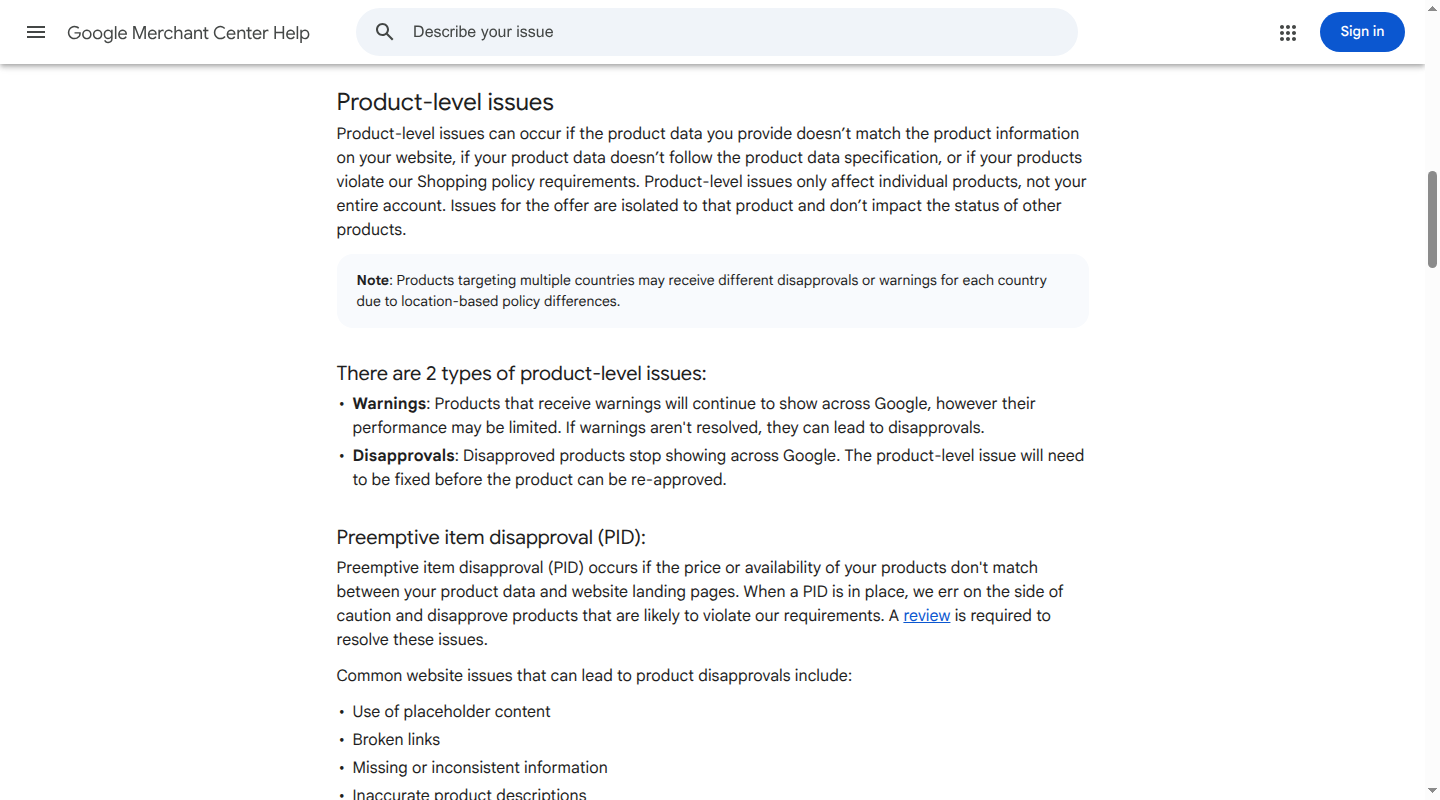
Do not treat a product disapproval as proof that the entire account is suspended. Conversely, do not fix one flagged SKU and assume an account-level notice is resolved. First establish whether the notice is product-level, account-level, country-specific, or linked to another account.
Capture the exact issue before changing anything
Start with the notice Google gave you, not a generic checklist from a forum. Save a copy of the email and record the following from the account:
- The policy or data-quality name. Examples include Misrepresentation, price mismatch, unavailable offers, or a product data specification issue.
- The scope. Record whether the issue affects a product, a country, a destination, or the account. Products targeting multiple countries can have different issues in each country.
- The examples. Download the affected-product list from the issue details page when it is available. Keep product IDs, URLs, and the exact message.
- The dates and status. Note when the warning or suspension started, the warning-period deadline, and whether a review button or cool-down date is shown.
- The connected systems. Record the data source, ecommerce platform, linked accounts, and any third-party app that can change product data.
In Merchant Center, account-level issues appear in the banner at the top of the account. You can also go to Products, open Needs attention, and choose View setup and policy issues. Product-level issues are listed in Needs attention for the affected product. Labels move as Google updates the interface, so use the notice and the in-product path together.
The causes that deserve a full audit
Google’s examples are not an exhaustive suspension checklist. Use the notice to choose the relevant branch, then audit related promises that could create the same signal.
Misrepresentation and missing business information
Misrepresentation is a trust problem. Google may assess your listings, website, account information, and third-party sources together. Common triggers include:
- A legal business name, address, phone number, or email that is missing or inconsistent across the site and Merchant Center.
- A hard-to-find contact page, placeholder text, broken form, or shipping, return, refund, privacy, or payment terms that are missing or contradictory.
- A product claim, discount, delivery promise, or subscription condition that the site cannot support.
- Checkout, account, or payment flows that fail, redirect unexpectedly, or do not make the total cost clear.
Review Google’s Misrepresentation policy for the specific policy language. Its examples are fact-specific. Do not assume that adding a footer link alone fixes a store whose product claims or checkout terms remain misleading.
Price and availability mismatches
Compare the offer Google receives with the page a shopper lands on. Check the same variant, currency, sale state, and customer location. A mismatch can arise when:
- the feed has an old sale price while the product page has the regular price;
- the feed says
in_stockwhile the selected variant is unavailable; - a regional page shows a different currency or price;
- taxes, minimum order values, or required fees appear only later in checkout; or
- a cached feed, structured-data block, or app output disagrees with the visible page.
Google calls out price and availability mismatches as a cause of preemptive item disapprovals. Product-level and account-level consequences depend on the issue and the account, so fix the data rather than guessing at the enforcement outcome.
Shipping, returns, and checkout
The product offer includes the terms needed to complete a purchase. Check that shipping rates, delivery windows, destinations, handling time, return windows, refund method, and return-shipping fees are clear and consistent. Check both policy pages and the actual checkout calculation.
Country settings matter. Make sure the shipping and tax settings you submit at the account or item level match what the shopper sees for the same country and product.
Restricted products, unsupported offers, and unreliable claims
Review the Shopping policy named in the notice for restricted, regulated, counterfeit, dangerous, or unsupported products. Also check claims in titles, descriptions, images, promotions, and structured data. A permissible product can still create a policy problem when its advertised result, affiliation, or availability is inaccurate.
Do not turn another merchant’s checklist into a universal rule. Product category, destination, country, and the facts of the offer all matter.
Data-quality and specification errors
For each affected item, inspect the required fields for its category and destination. Start with:
id, title, description, link, image_link, brand, gtin or mpn when applicable, price, availability, condition, variant fields, category, and shipping or tax settings where applicable.
Look for invalid identifiers, duplicate variant IDs, malformed URLs, unsupported values, missing images, incorrect categories, stale data, and a product page that redirects to a generic collection. Use Google’s product data specification for the requirements that apply to your product type and target country.
Attempts to bypass review
Do not reduce the catalog, alter a page temporarily, or create another account to get around a review. Google’s bypassed account review guidance specifically warns against manipulating product data or site content to evade checks. A smaller feed can hide the symptom while leaving the account-level problem in place.
Run a synchronized website and feed audit
Audit the storefront and the data source as one system. A clean CSV does not make an unavailable product compliant, and a polished product page does not correct a stale feed.
1. Check identity and transparency on the website
Use an incognito session and the same country settings that the affected offer targets. Check that:
- the legal business name and physical address are visible and match Merchant Center;
- phone and email details work and match the account or payment profile;
- About, Contact, Shipping, Returns or Refunds, Privacy, Terms, and payment information pages are reachable from the site navigation or footer;
- policy pages state actual timelines, eligibility, fees, exclusions, and the refund method;
- product pages, cart, and checkout contain no placeholder copy, dead links, browser errors, or unexpected redirects; and
- the store uses HTTPS and the checkout can complete for the target country.
Capture the URL and result for each check. A reviewer needs to see the live page, not a plan to publish one later.
2. Test the product promise on the landing page
Sample every product in the issue list, then sample products from the same source or category. For each variant, record:
| Check | Website value | Feed or Merchant Center value | Result |
|---|---|---|---|
| Product ID and variant | SKU or variant ID shown or encoded in the page | id, item_group_id, or variant fields | Match |
| Price and currency | Visible price and checkout total | price, sale_price, currency | Match for the target location |
| Availability | Selected variant and purchase control | availability, inventory state | Match |
| Product identity | Brand, title, condition, key attributes | Corresponding feed fields | Same product and variant |
| URL and image | Canonical product URL and reachable image | link, image_link | Crawlable and specific |
| Delivery and returns | Shipping, timing, fees, return terms | Account or item-level settings | Consistent |
Treat the customer-facing page as the operational source of truth for the promise. If the page is wrong, fix the commerce system that produced it, then regenerate the feed. If the feed is wrong, correct the mapping or transformation instead of editing hundreds of rows by hand.
3. Inspect the feed and crawl path
Download the current data source or API payload, not yesterday’s export. Check for:
- duplicate
idvalues or variant relationships that split the same product; - stale price, sale price, availability, shipping, or tax values;
- missing or invented GTINs, MPNs, or brand values;
- category mappings and condition values that follow the current specification;
- image and product URLs that return an error, redirect to a generic page, or require a blocked session;
- country and currency variants that point to the wrong landing page; and
- robots or server rules that block Googlebot or Googlebot-image.
For a high-risk issue, crawl the same URLs outside your application and test the page as an unauthenticated shopper. Compare what the browser renders with the values in structured data and the feed. A source record can be accurate while a template, cache, app, or regional rule publishes a different value.
Fix the source, then verify the new state
Make the smallest complete fix that removes the underlying cause. That may mean correcting business details, changing a policy page, repairing checkout, updating inventory logic, remapping a field, or removing an offer that is genuinely non-compliant.
Then:
- Publish site and policy changes to the live URLs.
- Update the source catalog or ecommerce system that owns the field, then regenerate or refresh the Merchant Center data source.
- Check the processed data and affected-product examples again.
- Crawl representative landing pages and confirm that price, availability, identity, and policies still match. Keep a short change log with the issue, owner, timestamp, and evidence.
Do not remove products solely to make the issue list smaller. Remove an offer when it violates a policy or cannot be fulfilled. Otherwise, fix the offer and keep the catalog complete. This is especially important for a bypassed-account-review notice.
This is a product-data governance problem as much as a channel problem. Catalog can give teams one normalized, live product data layer for the storefront, Merchant Center, marketplaces, and AI shopping surfaces. Read our guides to product data quality, product feed management, and product data syndication for the operating model behind that control loop. Catalog does not override Google policy decisions or reinstate an account.
Request a review only when the evidence is ready
Use the review action attached to the issue. Do not send a vague appeal while the site still shows old information.
Before you submit, confirm that:
- every issue named in the account banner has a completed fix;
- the live website, feed, structured data, checkout, and policy pages agree;
- identity verification is complete if Merchant Center requests it;
- the data source is not empty and contains the products you intend to sell;
- affected countries and destinations are covered; and
- you have saved the affected-product list and your change evidence.
For a fixed issue, select I fixed the issue and then Request review when that option is available. If you believe Google made an error, select I disagree with the issue and provide a precise reason and supporting documentation. The interface may show Review and fix, Fix, or Request review depending on the issue and integration. Google’s review instructions describe the current choices.
If you use the Google & YouTube app on Shopify, Google’s Shopify-specific warning and suspension guidance shows the integration path. The underlying audit still applies to your live site, account, and data source.
Keep the explanation factual:
We corrected the account issue identified as [policy or issue]. We updated [specific pages, fields, or settings] on [date], refreshed the data source, and checked [sample or affected-product set]. The business details, product prices, availability, shipping, and returns now match across the live site and Merchant Center. Please review the account for [country or destination].
Use that structure only when it is true. An appeal cannot substitute for a live fix.
Google says a review can take up to seven days. Some flows limit review or appeal actions and can impose a cool-down period after an unsuccessful attempt. The exact controls depend on the issue and account. Wait for the result, monitor the notice, and use the cool-down period to gather new evidence instead of resubmitting the same explanation.
Prevent a repeat suspension
After reinstatement, treat the notice as a control failure. Put an owner and a check behind each field that can change the customer promise.
| Control | Owner and check |
|---|---|
| Price and availability freshness | Ecommerce or inventory owner monitors source-to-feed lag and alerts on stale or conflicting values |
| Policy regression | Operations checks shipping, returns, refunds, privacy, contact, and checkout after site or payment changes |
| Feed validation | Catalog or channel owner validates identifiers, variants, URLs, images, categories, and required fields before upload |
| Crawl monitoring | Technical owner tests representative product pages, redirects, robots rules, server responses, and regional variants |
| Issue response | One operator owns the Merchant Center queue, records root causes, and closes the loop with merchandising and engineering |
Run automated checks for fields that change hourly, such as price and stock. Review policy pages and checkout after releases. Sample high-revenue, high-return, and recently changed products weekly. Review broader category completeness on a regular cadence.
FAQ
Is a product disapproval the same as a Merchant Center suspension?
No. A product disapproval normally affects the listed offer. An account suspension affects the account’s product data and disables products from appearing across Google. Check the scope in the account banner and Needs attention before choosing a fix.
Can I create a new Merchant Center account?
Do not create a replacement account to evade a suspension. Google says bypassing review or manipulating product data can violate its Abuse of Network policy, and a new account does not fix the business, website, or feed problem. Resolve the named issue in the affected account and use its review flow.
How long does a suspension review take?
Google’s current review guidance says a review can take up to seven days. That is guidance, not a reinstatement guarantee. More checks, a cool-down period, or an integration-specific workflow can change what you see.
What if the notice does not explain the problem?
Open the account-level issue banner and Products → Needs attention → View setup and policy issues. Download affected products, inspect the email and account message archive, and audit identity, policies, checkout, price, availability, and crawlability together. If the in-product path remains unclear, use Google’s support flow rather than guessing at repeated appeals.
Should I remove all products before requesting review?
No. Remove offers that are genuinely non-compliant or cannot be fulfilled. Do not hide products, shrink the feed, or change data only to pass a review. Fix the source data and keep the products that meet the policy requirements.
When one normalized catalog feeds every channel, a correction can flow to the storefront and Merchant Center together instead of creating another mismatch. See how Catalog works when you are ready to make that product-data layer operational.
